Build Your Dream Budget Gaming PC (2025 Edition!)
Unlock 1080p/1440p Gaming: Best Budget PC Builds for 2025
The allure of a custom-built PC is undeniable, as it offers a level of personalization and performance that pre-built systems can’t match. However, the cost of assembling a high-end gaming rig can be prohibitive for many enthusiasts. That’s where budget and mid-range builds come into play. These builds offer excellent value, striking a balance between performance and affordability. In this article, we’ll guide you through the process of crafting a budget-friendly gaming PC that can handle modern games without breaking the bank, focusing on components that are still readily available and relatively recent for 2025.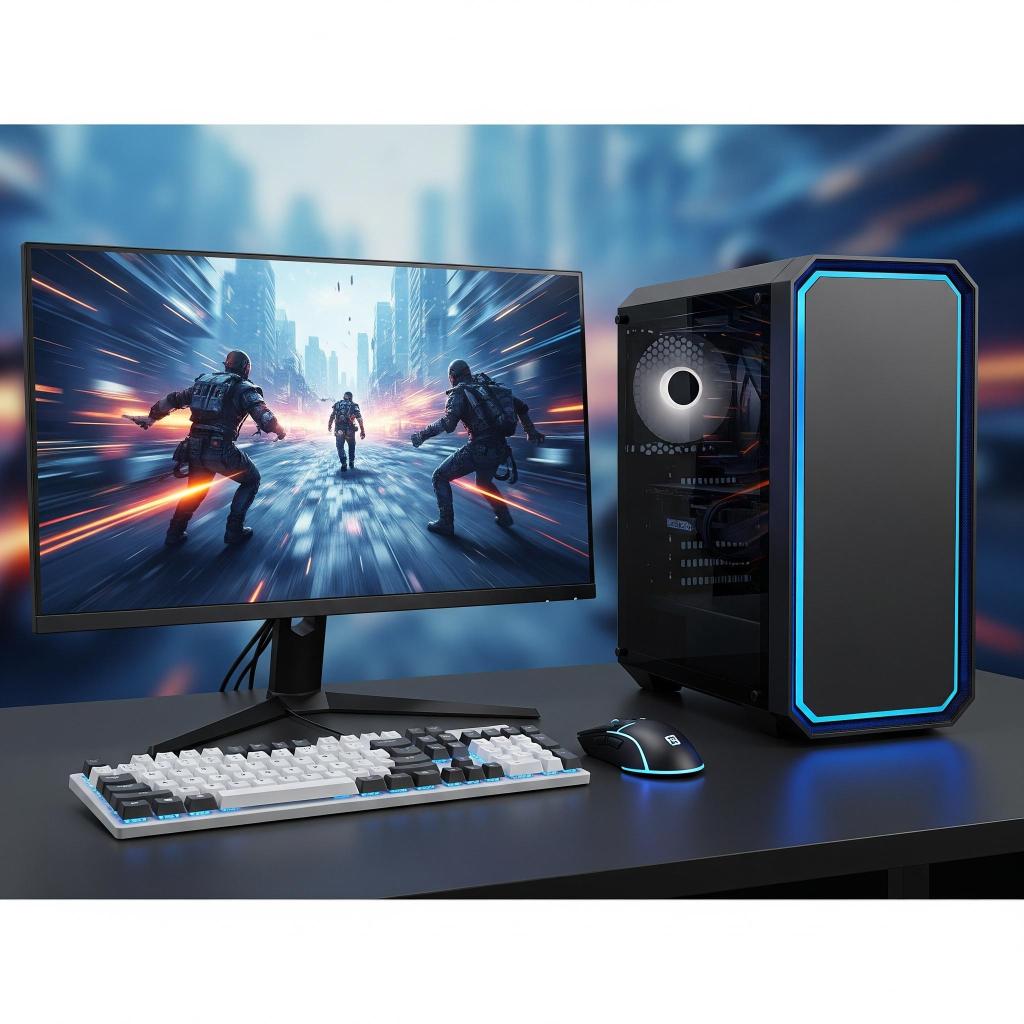
In this article, we’ll guide you through the process of crafting a budget-friendly gaming PC, focusing on key components that are still readily available and relatively recent. We’ll cover everything from processors and graphics cards to storage and monitors, providing recommendations and insights to help you make informed decisions.
Set Your 2025 Budget Tiers
-
Ultra Budget ($500–600): Entry-level 1080p; used or last-gen parts
-
Balanced Budget ($650–750): Solid 1080p in AAA titles, room for minor upgrades
-
Stretch Budget ($850–1,000): 1440p capable; NVMe + DDR5; headroom for future parts
Sample 2025 Builds
| Tier | CPU | GPU | RAM | Storage | Motherboard | PSU | Case |
|---|---|---|---|---|---|---|---|
| Balanced ($700) | AMD Ryzen 5 7600 |
NVIDIA RTX 4060 | 16 GB DDR5-5600 (2×8 GB) | 1 TB Team MP44L NVMe 4.0 | ASUS PRIME B650M-A DDR5 |
Corsair RM650x 650 W | Phanteks Eclipse P400A |
| Ultra Budget ($600) | Intel Core i5- 14600KF |
AMD RX 7600 | 16 GB DDR4-3200 (2×8 GB) | 1 TB Crucial P3 Plus NVMe 4.0 | MSI PRO B760M-B DDR4 |
Seasonic S12III 650 W | Cooler Master NR600 |
| Stretch ($900) | AMD Ryzen 7 7700X | RTX 4060 Ti | 32 GB DDR5-6000 (2×16 GB) | 2 TB Gen 4 NVMe (WD Black SN7700) | Gigabyte X670E AORUS Elite AX |
Seasonic Focus GX-650 W | Lian Li Lancool II Mesh |
Notes: • Prices fluctuate—shop sales events (Prime Day, Black Friday). • You can mix and match DDR4 vs. DDR5 based on motherboard choice. • Swap in a modest HDD if you need extra storage.
Understanding Your Needs vs Perceived Needs
Before diving into component selection, it’s essential to assess your gaming needs. Consider the types of games you play most often. Are you a competitive FPS player demanding the highest frame rates, or do you prefer more story-driven titles that prioritize visual fidelity? Just because it costs more doesn’t mean it will give you the right dollar vs needs value. We all get caught up in the talk and comments from our online community, but not everyone needs a $3,000 GPU to play most of the games they own. The following will help bring the real world back into focus, and hopefully, you will understand what you need to get the best PC for the money you can spend.
-
-
Resolution and Frame Rate: Determine your desired resolution (1080p, 1440p, or 4K) and target frame rate. Higher resolutions and frame rates generally require more powerful hardware.1080p @ 60 FPS: Sub-$700 builds • 1440p @ 30–60 FPS: Stretch-budget in the $800–1,000 range.
-
-
-
Graphics Settings: Decide on the graphics settings you’re willing to compromise on. Lower settings can significantly reduce GPU demands.
- Game Types • Esports (Valorant, Rocket League): Prioritize GPU with a mid-tier card • AAA (Cyberpunk 2077, Starfield): Lean into a stronger CPU + GPU balance
-
-
-
Storage: Consider the amount of storage you’ll need for games, the operating system, and other files. A combination of an SSD for the operating system and frequently played games, along with a larger HDD for bulk storage, is a common approach.
- Additional Uses • Streaming or content creation: Budget a bit more for multicore CPU and extra RAM
-
Choosing the Right Components
Now that you have a clear understanding of your requirements, let’s explore some budget-friendly component options that are still readily available, relatively recent, and will work within your budget.
Processors (CPUs):
-
-
Intel Core i5-13400F: This 10-core processor remains an excellent choice for budget-conscious gamers. It offers strong gaming performance and is efficient.
-
-
-
AMD Ryzen 5 7600X: A highly competitive option from AMD, the Ryzen 5 7600X provides strong performance, especially for its value. It’s a solid choice for those starting on the AM5 platform, offering upgrade potential.
-
-
-
AMD Ryzen 5 9600X: As a newer Zen 5 option, the Ryzen 5 9600X delivers excellent mid-range gaming performance with good power efficiency.
-
-
-
Intel Core i5-12400F: For an even tighter budget, the 12400F is still a fantastic bargain, providing excellent gaming performance for its price point.
-
The Graphics Powerhouse: GPUs
The graphics card is arguably the most crucial component for gaming performance. It’s responsible for rendering the visuals on your screen. Here are some excellent options for budget to mid-range gaming in 2025:
-
-
Intel Arc B580: A strong contender in the budget space, offering excellent cost-per-frame at 1080p and even competent 1440p performance, especially with XeSS support. It comes with a healthy 12GB of VRAM.
-
-
-
NVIDIA GeForce RTX 4060: A balanced performer for 1080p and some 1440p gaming. It benefits from DLSS 3 and decent ray tracing capabilities.
-
-
-
AMD Radeon RX 9060 XT: A new RDNA 4 card that delivers excellent 1080p performance and improved ray tracing. The 16GB VRAM model offers good future-proofing.
-
-
-
NVIDIA GeForce RTX 5060 Ti 16GB: Positioned as a strong mainstream option, it offers a notable performance gain over its predecessor and includes DLSS 4 with Multi Frame Generation.
-
Key Considerations:
-
-
Performance: Consider the games you play most often and the desired frame rates and resolution.
-
-
-
Ray Tracing and Upscaling (DLSS, FSR, XeSS): If you value these features, look for GPUs that support them. NVIDIA’s DLSS and AMD’s FSR (now with AI enhancements) and Intel’s XeSS can significantly boost performance.
-
-
-
Power Consumption: Ensure your power supply is capable of handling the GPU’s power requirements.
-
Motherboards:
-
-
B650 (AMD): For AMD Ryzen 7000/9000 series CPUs, B650 motherboards offer a good balance of features and affordability. Look for models with PCIe Gen 5 support for future-proofing with newer GPUs and SSDs. Examples include GIGABYTE B650 AORUS ELITE AX and ASUS TUF GAMING B650-PLUS WIFI.
-
-
-
B760/B860 (Intel): For Intel 13th/14th Gen and newer CPUs, B760 and upcoming B860 chipsets provide a good balance for budget and mid-range builds. Look for models with robust VRMs if you plan on using more powerful chips in the future.
-
Key Considerations:
-
-
Socket Compatibility: Ensure that your chosen processor is compatible with the motherboard you select (e.g., AM5 for Ryzen 7000/9000, LGA 1700 for Intel 13th/14th Gen).
-
-
-
Overclocking Potential: While budget builds generally don’t focus heavily on overclocking, if you plan to do so, look for motherboards with robust VRM (Voltage Regulator Modules) and BIOS features.
-
-
-
Expansion Slots: Consider the number of PCIe slots and USB ports you’ll need for future upgrades and peripherals.
-
The Memory / RAM:
RAM (Random Access Memory) is essential for storing data that your CPU is actively using. It directly affects the system’s responsiveness and overall performance. Here’s what you need to know:
-
-
DDR5: For newer platforms (like AMD AM5 and Intel’s latest), DDR5 is the standard. 16GB is a good starting point for gaming, but consider 32GB for more demanding titles, content creation, or if you plan to use multiple applications simultaneously.
-
-
-
Speed: Look for DDR5 modules with speeds of 6000MHz or higher for optimal performance with modern CPUs. For budget DDR5, 5600MHz is a good starting point.
-
-
-
DDR4: If you’re opting for an older, more budget-friendly platform (e.g., Intel 12th/13th Gen on a DDR4 motherboard), 16GB of DDR4 at 3200MHz or 3600MHz is still perfectly adequate for gaming.
-
Key Considerations:
-
-
Compatibility: Ensure the RAM you choose is compatible with your motherboard’s supported speed and timings.
-
-
-
Dual-Channel Configuration: For best performance, always install your RAM modules in a dual-channel configuration (usually two sticks).
-
Storage:
Storage is essential for storing your operating system, games, applications, and files. There are two primary types of storage: SSDs (Solid-State Drives) and HDDs (Hard Disk Drives).
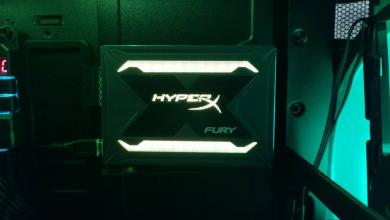
-
-
NVMe SSDs: For your primary drive (operating system and frequently played games), an NVMe SSD is highly recommended due to its significantly faster read and write speeds. Look for PCIe Gen 4 NVMe SSDs for excellent performance. Capacities of 500GB to 1TB are good starting points.
-
-
-
SATA SSDs: While slower than NVMe, SATA SSDs are still much faster than HDDs and can be a cost-effective option for secondary game storage or general data.
-
-
-
HDDs (Hard Disk Drives): For bulk storage of media, older games, or less frequently accessed files, a larger HDD (2TB or more) offers the best cost per gigabyte.
-
Recommended Storage Configuration:
-
-
Boot Drive: Use a 500GB – 1TB NVMe SSD for your boot drive (where the operating system and frequently used applications are installed) to enjoy faster boot times and application loading.
-
-
-
Storage Drive: For bulk storage of games, movies, and other files, a larger 1TB+ HDD or a cost-effective SATA SSD is a good option.
-
Power Supply (PSU):
A quality power supply is essential to ensure stable performance and protect your components.
-
-
Wattage:
-
-
Budget Builds: 550W to 650W, depending on your chosen GPU.
-
-
Mid-Range Builds: 750W to 850W, especially if considering higher-end mid-range GPUs or future upgrades.
-
-
-
-
Efficiency: Look for units with good efficiency ratings (80+ Bronze, Silver, or Gold) to ensure less wasted energy and heat.
-
-
-
Modular Design: While not strictly necessary for budget builds, a semi-modular or fully modular PSU can significantly improve cable management within your case.
-
-
-
Brand Reputation: Choose a reputable brand like Corsair, EVGA, Seasonic, Cooler Master, or be quiet!
-
Case:
The case provides a protective enclosure for your components and influences airflow, cable management, and overall aesthetics.
-
-
Mid-Tower Case: This is the most common and recommended size for budget and mid-range builds, offering ample space for components and good airflow.
-
-
-
Airflow: Look for cases with mesh front panels or plenty of ventilation to ensure good airflow and prevent overheating, especially with modern components.
-
-
-
Cable Management: Cases with built-in cable routing channels and tie-down points will make your build look cleaner and improve airflow.
-
-
-
Aesthetics: Choose a case that matches your personal style, whether you prefer a minimalist look or something with RGB lighting.
-
Cooling:
Proper cooling is essential to prevent overheating and ensure stable performance.
-
-
CPU Cooler:
-
-
Stock CPU Cooler: Some budget-friendly CPUs (like certain Intel Core i5 and AMD Ryzen 5 models) come with a stock cooler that can be sufficient for basic use, but for better noise levels and performance, an aftermarket cooler is recommended.
-
-
-
Aftermarket Air Cooler: For budget and mid-range builds, a good air cooler (e.g., from brands like Cooler Master, Deepcool, Thermalright) offers excellent performance for the price and is generally quieter than stock options.
-
-
-
-
-
Case Fans: Ensure your case has at least one intake and one exhaust fan. Adding additional case fans can significantly improve airflow and reduce temperatures.
-
-
-
Thermal Paste: Always use a high-quality thermal paste between your CPU and cooler to ensure efficient heat transfer.
-
Monitors:
The monitor is the display device that shows the output of your PC.
-
-
Resolution:
-
-
1080p: Still a fantastic option for budget gaming, especially with higher refresh rates.
-
-
-
1440p: Becoming increasingly popular for mid-range builds, offering a sharper image than 1080p without the extreme hardware demands of 4K.
-
-
-
-
-
Refresh Rate: A higher refresh rate (measured in Hz) provides smoother visuals. Aim for at least 144Hz for competitive gaming at 1080p or 1440p.
-
-
-
Response Time: A lower response time (1ms to 5ms) reduces motion blur and improves clarity, crucial for fast-paced games.
-
-
-
Panel Type:
-
-
VA (Vertical Alignment): Provides deeper blacks and higher contrast ratios, good for immersive gaming.
-
-
-
TN (Twisted Nematic): Generally the fastest response times, but with narrower viewing angles and less vibrant colors. Less common for new gaming monitors.
-
IPS (In-Plane Switching): Offers excellent color accuracy and wide viewing angles, great for general use and visually rich games.
-
-
Recommended Monitor Options:
-
-
1080p Gaming: Look for a 24-inch or 27-inch 144Hz+ IPS or VA monitor with a low response time.
-
-
-
1440p Gaming: Consider a 27-inch or 32-inch 144Hz+ IPS monitor with good color accuracy and contrast.
-
Shopping Tips & Tricks
-
Used Market: GPUs and CPUs often change hands after one generation-hop—check forums, local marketplaces, and buy from sellers with positive feedback.
-
Combo Deals: Retailers often bundle CPU+motherboard or RAM+CPU coolers at discounts.
-
Flash Sales & Refurbs: Keep an eye on week-long promotions (Prime Day, Black Friday) and manufacturer-refurbished PSUs or SSDs.
Building Your PC
Once you’ve selected your components, it’s time to assemble your PC. Take your time, follow the manufacturer’s instructions carefully, and ensure all connections are secure.
- Prepare Your Workspace: Set up a clean, well-lit workspace with a static-free mat.
- Install the Motherboard: Mount the motherboard into your case, ensuring it’s securely fastened.
- Install the CPU: Carefully install the CPU into the motherboard socket, following the manufacturer’s
instructions. - Apply Thermal Paste: Apply a pea-sized amount of thermal paste to the CPU die (unless your cooler comes with pre-applied paste).
- Install the CPU Cooler: Mount the CPU cooler onto the motherboard, ensuring it’s securely fastened.
- Install RAM: Insert the RAM modules into the motherboard slots, ensuring they’re properly seated.
- Install Storage Drives: Connect your SSD(s) and HDD (if using) to the motherboard’s storage controllers.
- Install the Graphics Card: Insert the graphics card into a PCIe slot on the motherboard.
- Connect Cables: Connect the power supply cables to the motherboard, CPU, GPU, and storage drives.
- Install Case Fans: Connect the case fans to the motherboard or power supply.
- Cable Management: Use cable management ties or routes to keep your build tidy.
- Close the Case: Close the case and secure the side panels.
Future-Proofing Your Build
One of the advantages of building your own PC is the flexibility to upgrade components over time. As new hardware becomes available, you can gradually enhance your system’s performance. For example, if you want to improve gaming performance, you could upgrade your GPU. If you need more storage, you can add an additional SSD or a larger HDD. Choosing a motherboard with a newer socket (like AMD’s AM5 or Intel’s latest LGA) and PCIe Gen 5 support offers more significant upgrade paths for future CPUs and GPUs.
Final Thought
Building a budget-friendly gaming PC can be a rewarding experience. By carefully considering your needs and selecting the right components available in 2025, you can create a capable machine that can handle modern games without breaking the bank. Remember, the key to a successful build is to strike a balance between performance and affordability. With a little planning and research, you can enjoy the benefits of a custom-built PC without sacrificing your wallet.