CONNECTIONS
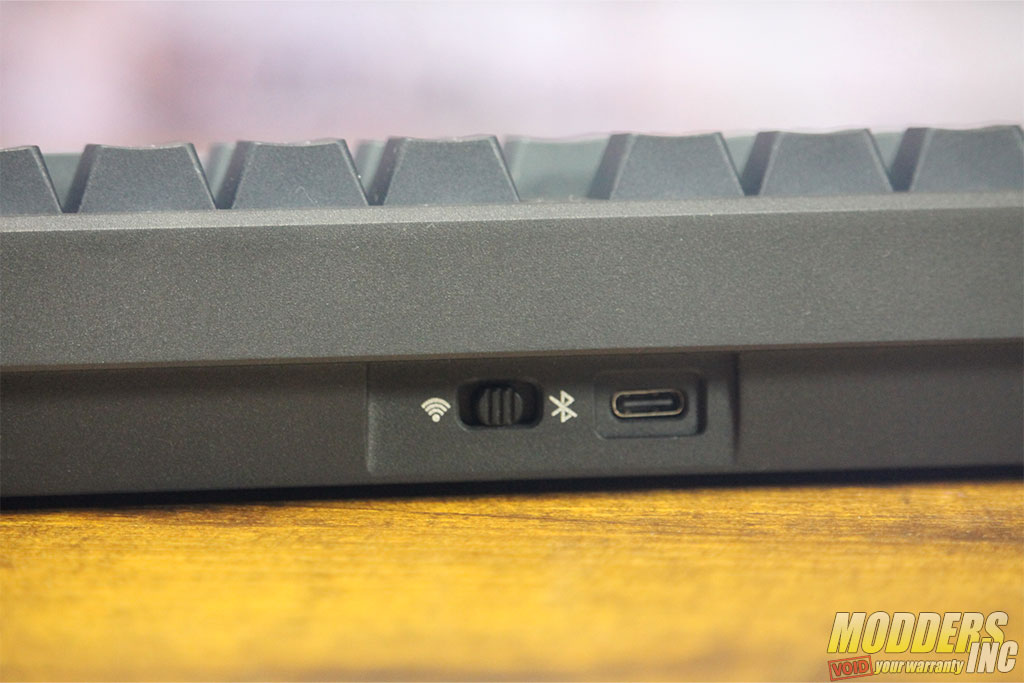
There are three ways to connect the Galaxy100 to your PC: USB-C, Bluetooth, and 2.4 GHz. Depending on your needs, these are great options to have through a single keyboard. A simple 3-position sliding switch is located on the very top side of the keyboard. Right next to the switch is the C-Type connection. I would say most users will be using the cable, especially if you are a gamer and want to have the least amount of lag possible.
Type-C
To use the Type-C cable when connecting to your device, you will need to toggle the connectivity switch to the USB position, which is in the middle spot of the three-way selector switch. Make sure the keyboard is in the
Wired mode. Next, plug the USB-C cable into the Type-C port on the keyboard and the USB connector into your PC. When the backlight RGB comes on, it means that the keyboard has connected successfully.
Bluetooth
Bluetooth is an option that makes the EPOMARKER Galavy100 Lite a universal input device. Connecting to my PC was simple and quick. If you have a tablet or phone that you like to use the most, the Glaxay100 Lite should have no issues connecting. I was able to pair it with my Pixel 10 phone and use it within about 30 seconds. I could see this as a good advantage over trying to type long items using a phone’s onscreen keyboard.
The Glaxay100 Lite offers three connections using the Bluetooth method, so technically, you could have it paired to three different devices, such as your tablet, phone, and PC and depending on the one you want to use it with you would simply use the FN key with one of the there following keys: the Q key or connection #1, the W key for connection #2, and the E key for connection #3.
2.4G
The 2.4G option requires an included dongle and is attached to the USB cable for ease of storage when not in use. This option extends the range beyond the limits of the Bluetooth range. I was able to control and type on my PC from outside in my backyard at a distance of 40+ feet away. Pairing up the 2.4G was quick and easy on my PC, and the nice thing is that if you forget what key to use to pair the Galaxy100 to the PC, the R key will flash until you pair it with the PC. If you are switching over from Bluetooth or the Type-C cable, the R will flash until it automatically pairs.
SWITCHES
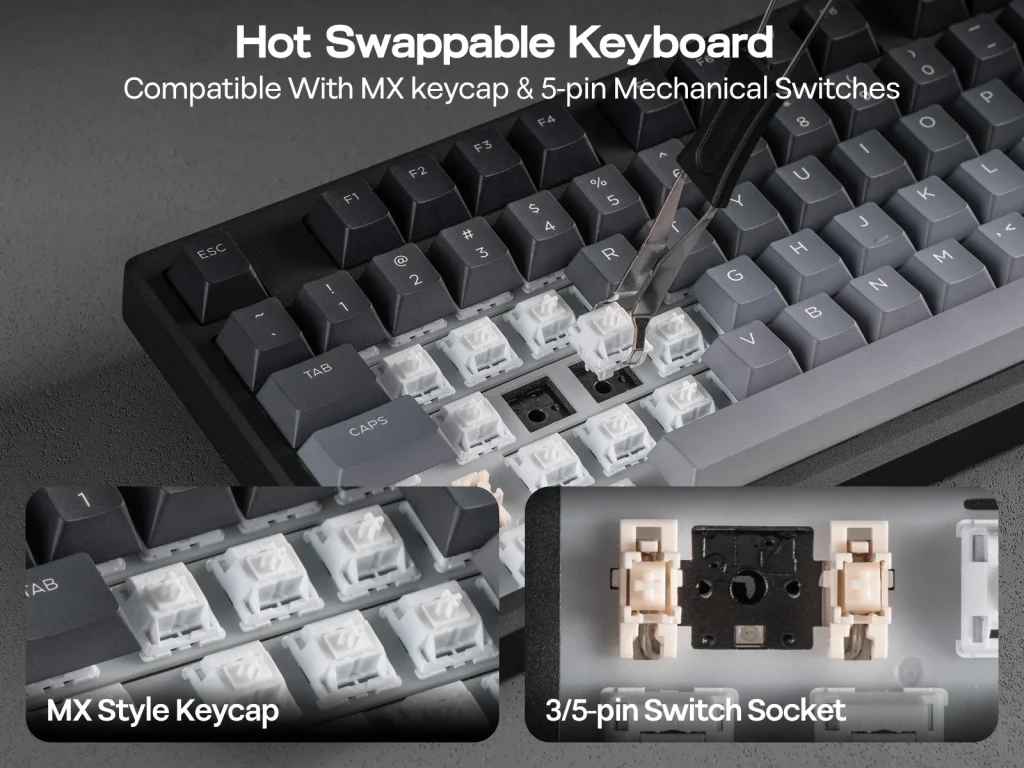
The EPOMARKER Galaxy100 Lite is a hot-swappable keyboard that comes with factory-lubed linear switches, thocky marble white and creamy wisteria linear V2 switches, which deliver a smooth, mellow rhythmic tapping sound compared to rolling marbles. One of the features of the Galaxy100 Lite keyboards is their noise-damping capabilities. Paired with a cushioned gasket structure, the acoustics of the Galaxy100 Lite keyboard are softened to a gentle thump, ideal for those who work in an office or shared spaces when playing games on their PC.
| Sound Dampening | 5 layers: Poron sandwich pad, IXPE switch pad, PET sound enhancement pad, EMDP switch socket pad, PET bottom pad |
| Keycaps Profile | Cherry |
| Keycaps Material | PBT Plastic |
| Keycaps Manufacturing Technique | Dye-Sub |
| Switch | 5-pin Pre-Lubed Linear Switch |
| Hot swappable | Yes, 3/5-pin mechanical switches |
| NKRO (N-key rollover) |
NKRO (N-key rollover) vs Anti-ghosting
What is NKRO? It ensures that every key pressed registers independently, regardless of how many are held down. Anti-ghosting prevents “ghost” keys from registering when pressing specific combinations, typically covering only a limited set of keys.
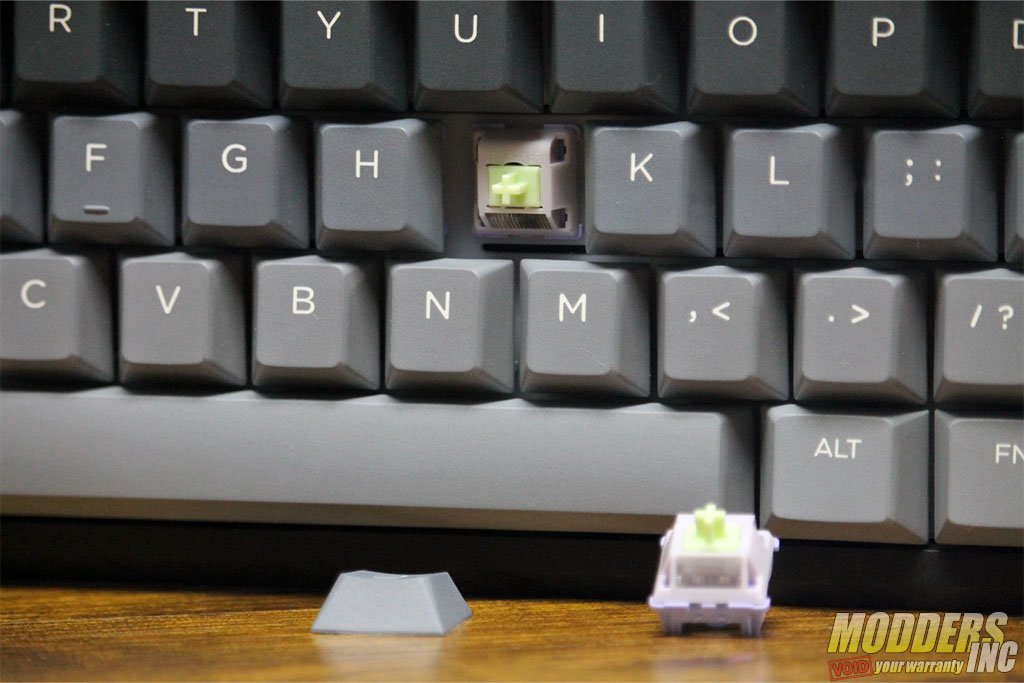
Designed for keyboard enthusiasts and those who want the ease of removing keys and switches in just a few moments, the Galaxy100 Lite also features a hot-swappable PCB and a 2-in-1 switch-and-keycap puller, allowing effortless, seamless testing of different switches. Switching out switches is as simple as a quick pull and push.
WIRELESS POWER
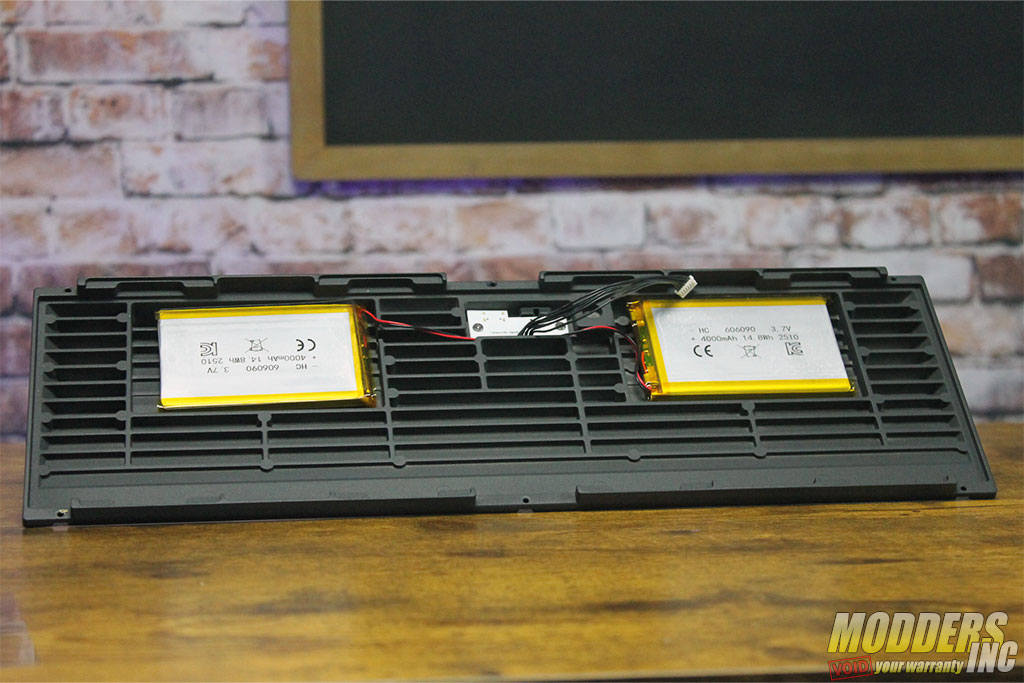
Two 3.7VDC 4000mAh batteries are used to supply the power to the keyboard while in Bluetooth and 2.4G modes. The batteries are located in the base of the unit with a protective sheet across them. As you can see in the image, they sit nicely into the base that has plenty of support structure to keep them and everything else in place. If, sometime farther down the road, a battery might need to be replaced, it looks like it could be done rather easily.
BATTERY CHECK
So it has been a few days since you last plugged in the Epomaker Glaxay100 Lite and you are wondering how the battery charge is all you have to do to check the battery, in wireless mode, is to press and hold FN+Space to check the keyboard battery. When holding FN+Space, the RGB lighting will go off on number keys 1 to 0 at the top of the keyboard. What you will see is that some of the numbers will relight up, indicating what percentage of the battery power is left. For example, if key numbers 1 to 6 light up, then the keyboard battery percentage is at 60%. If you do need to charge the keyboards, it will charge under either Wired or Wireless connectivity with the
device as long as the keyboard is plugged in. Don’t use a charger to charge the keyboard.
LIGHT INDICATORS
- Numpad: The indicator lights up when enabled.
- Caps Key: The indicator lights up when enabled.
- Win Key: The indicator lights up when disabled