RGB CONTROL
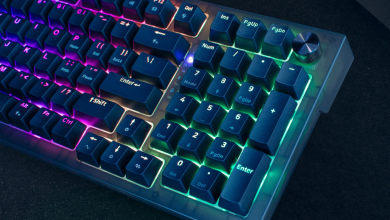
Now that you have the Galaxy100 Lite paired or plugged in, it is time to have some fun with the RGB Lighting. There are some 40 different styles of lighting effects already programmed into the keyboard. Add in the ability to change the colors, speed, and brightness of the RGB LEDS it technically raises that number even higher.
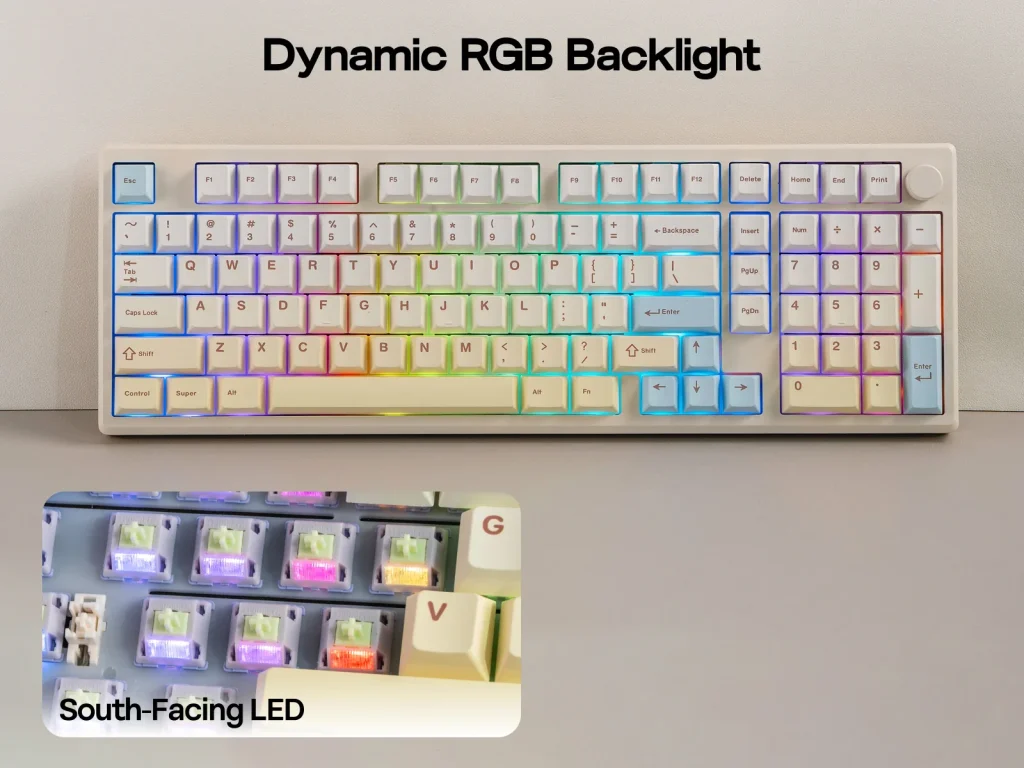
Simply use the FN key with other key combinations to customize the effects to your liking. These key combinations are as follows.
| FN+ | Action |
| T | Turn On/Off Backlights |
| ENTER | Toggle Backlight RGB Effects |
| |\ | Toggle Backlight Colors |
| Down Arrow | Backlights Brightness – |
| Up Arrow | Backlights Brightness + |
| Left Arrow | Backlights Speed – |
| Right Arrow | Backlights Speed + |
Each key on the keyboard is equipped with a south-facing (forward-facing) LED, which shines brightly, but not overpoweringly, from the typist’s perspective. If you look closely at the switch on the right, you will see a window through which the LEDS project.

Even when the room is lit, you still get to enjoy the RGB lighting and the effects it produces. The EPOMARKER Galaxy100 Lite is already programmed and ready to be customized to your liking.

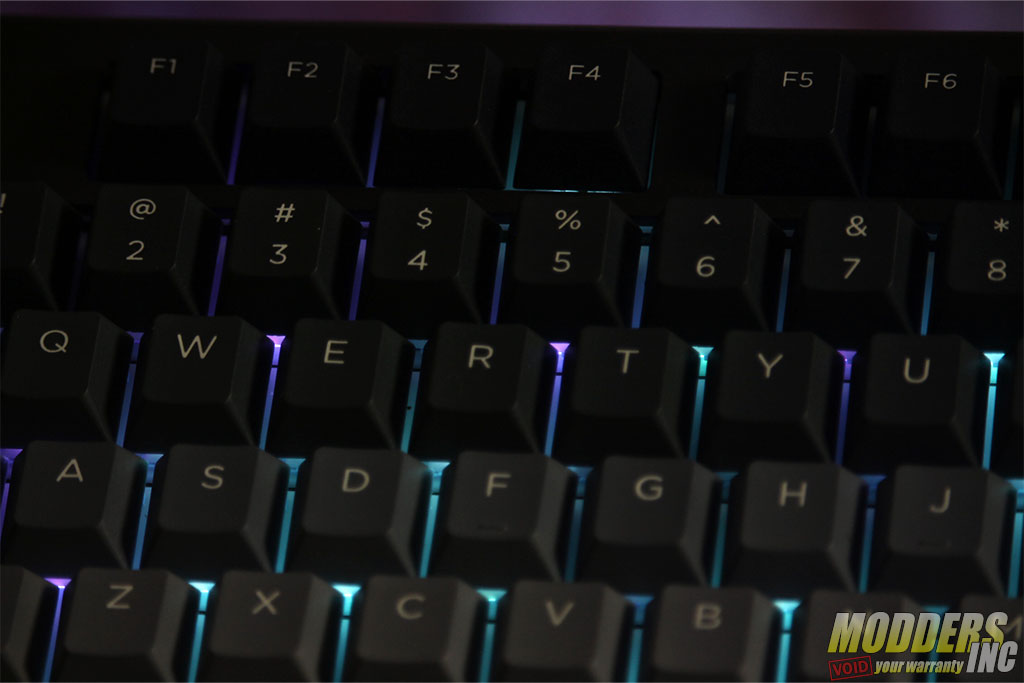
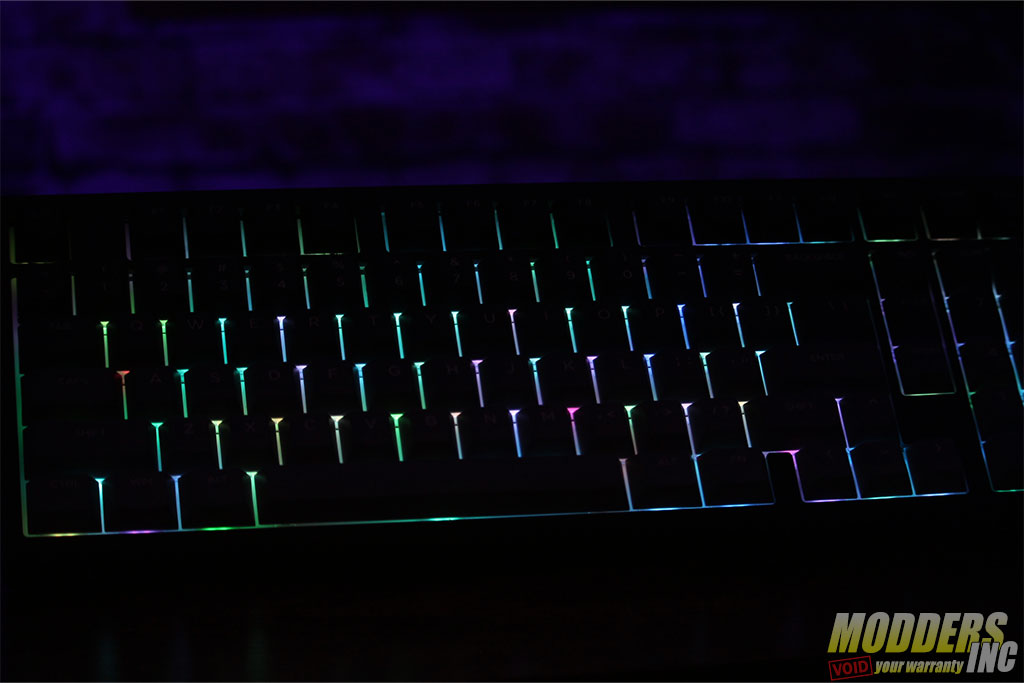
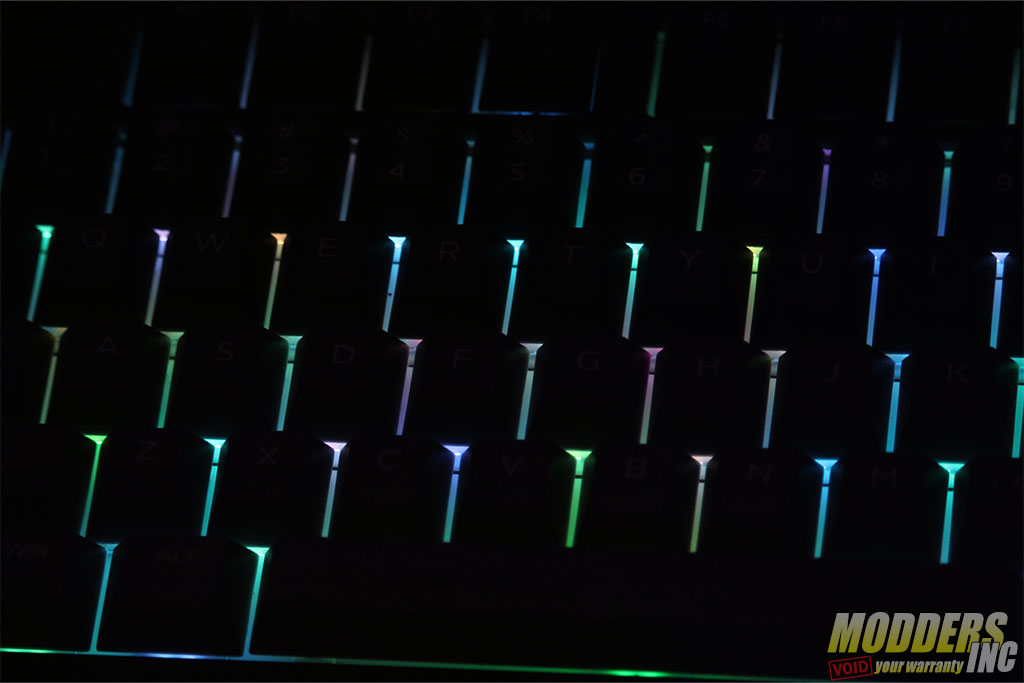
The Galaxy100 Lite does not use any EPOMARKER software to program the keyboard. What it does use is the widely used Open-Source software VIA. This software is available to use offline, or you can use it through a web browser at https://www.usevia.app/

VIA allows you to remap any key(s) on the Galaxy100 Lite to whatever you want them to be. Do you want the Delete key to be where the PgDn key is? With a few clicks, you can do it and much more.
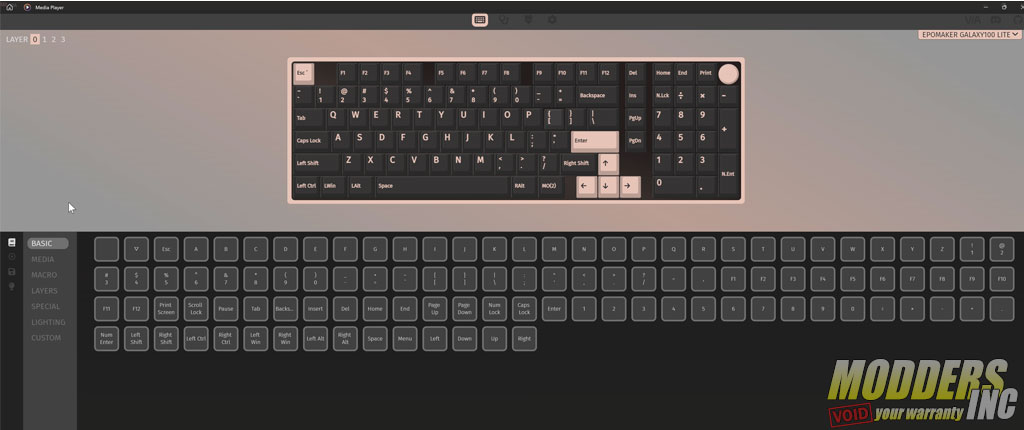
You can also work on RGB lighting by scrolling through the list. selecting one and making changes to the brightness, effect, effect speed, and color.
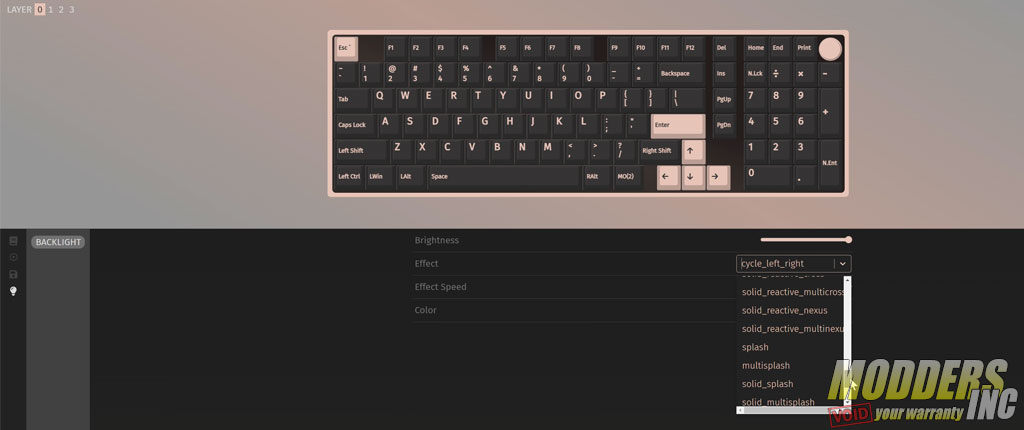
Through my testing, I found that I like the web-based interface, as I had some issues with the offline version, wanting to find the keyboard.
Related Articles