EPOMAKER CLICK Mouse Review
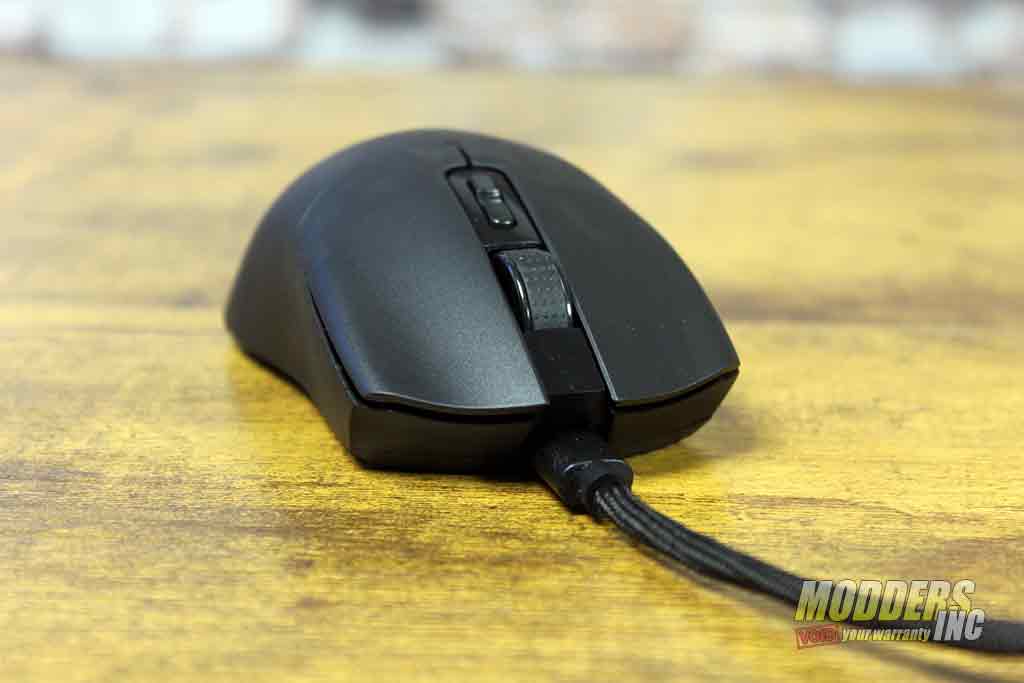
First impressions — the CLICK is light at about 58 grams without any honeycomb holes, which is honestly refreshing. I’m all for lightweight mice, but not all lightweight mice need to look like Swiss cheese. The shape is
a low-profile design that works for claw and fingertip players. If you’ve used a Viper Mini or an XM1, you’ll feel right at home. Build quality? Surprisingly solid. No creaking, no flexing, nothing that makes you go ‘ah, that’s where they cut corners.’ Even the scroll wheel feels good — not too mushy, not too stiff. Just… right.
For me, it has just the right amount of extra buttons that are easy to get to and use for either office work or gaming.
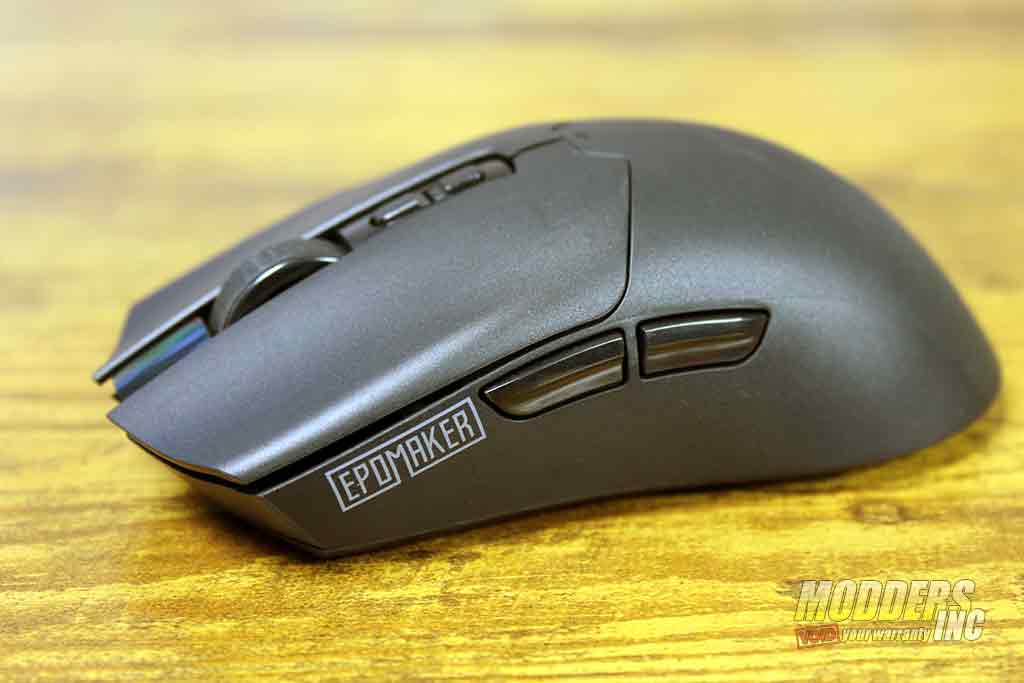
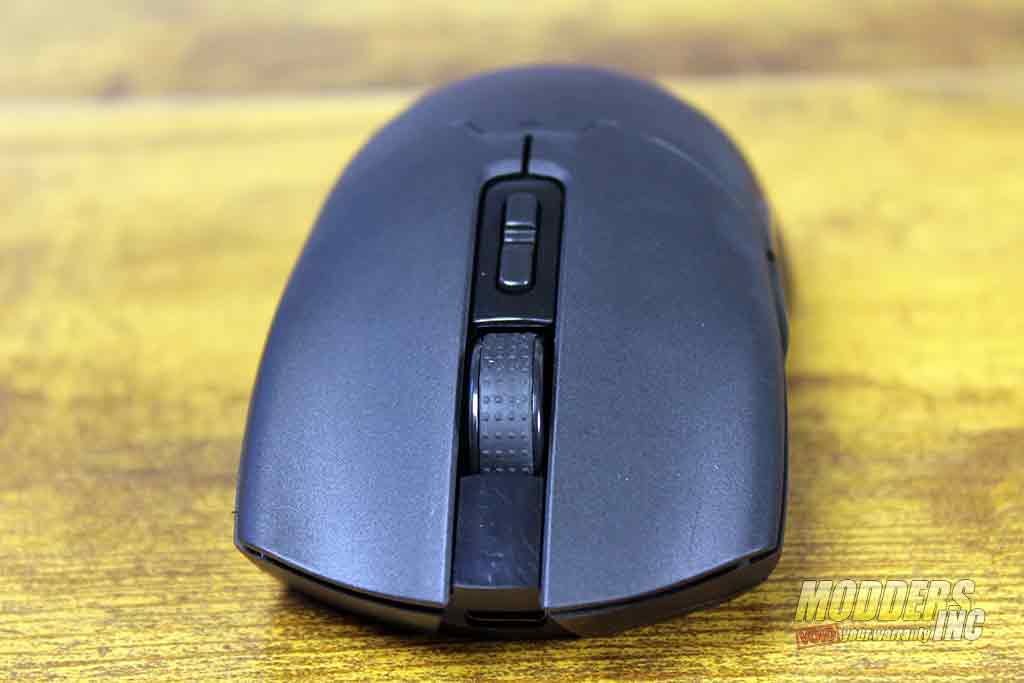
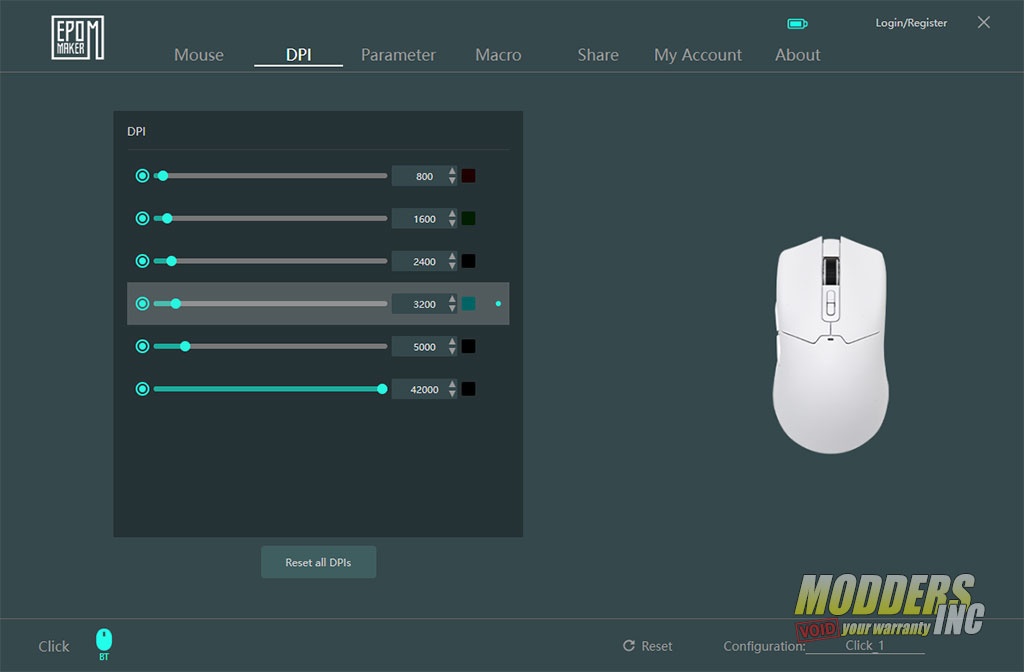
On the working end of the EP{OMAKER CLICK Mouse we have everything we need to make it through the day and night. The switches are optical, which means zero debounce delay and a crisp, clean click. They’re not overly heavy, not overly light — just a nice middle ground. The left and right buttons are 25mm/1 inch wide and about 60mm/2.5 inches long with a slight concave to them all the way down to the finger tip area. In between the two switches rest the scroll wheel and the DPI adjustment buttons (one for lower, one for higher). There are six different levels of DPI that you can set in the software, and each level is color-coded, and that color is projected out through an RGB LED at the crest of the mouse, just where the buttons start. The scroll wheel is about 8mm wide with a textured rubber inlay. The rolling clicks on the wheel are distinctive without being too abrupt, while the pushing down motion is, I would guess, about 2 times the force it takes to click the two main buttons. I mean, it’s not bad or anything, it’s not like you are trying to press down on the brake pedal of a truck from the 50’s.
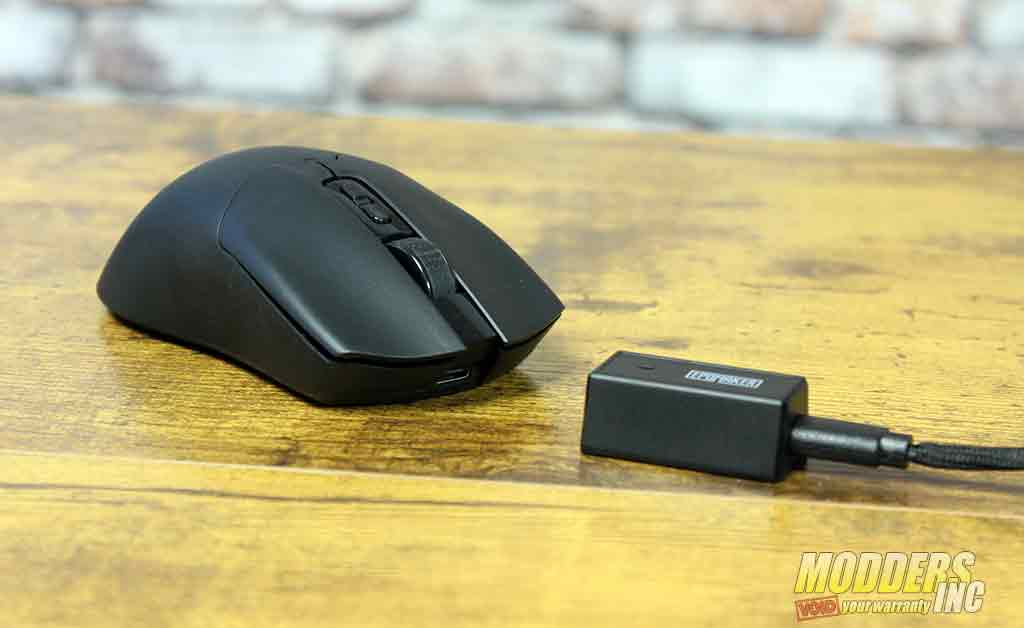
There are three ways to connect the CLICK mouse to your device
• 2.4 GHz for gaming
• Bluetooth for laptops or tablets
• USB-C wired for when you want zero latency
All three methods were very easy to set up. Of course, the USB-C was the fastest way, but the other two were not too far behind. Those who are gamers will more than likely pick the cable option, as it feeds data back the quickest. The cable is also used to charge the Epomaker CLICK and is used to connect the receiver to the PC.
There are two, well, actually three, ways to connect the CLICK to a device. You can either use 2.4G, which is going to be the fastest of the two wireless methods, or you can use Bluetooth. This is where options two and three come into action. With Bluetooth, you have Bluetooth-1 and Bluetooth-2 to choose from. Technically, you can use the same mouse on two different devices from the same workstation by selecting what mode you have the mouse in, Bluetooth1 or Bluetooth 2. Probably rare to do so, but still a nice feature.
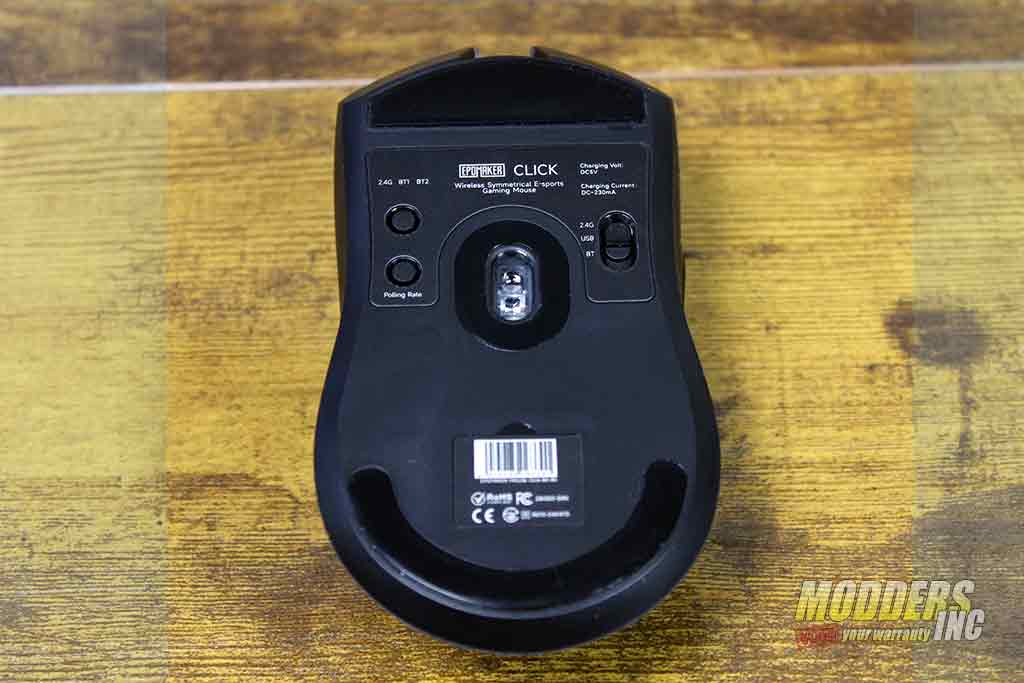
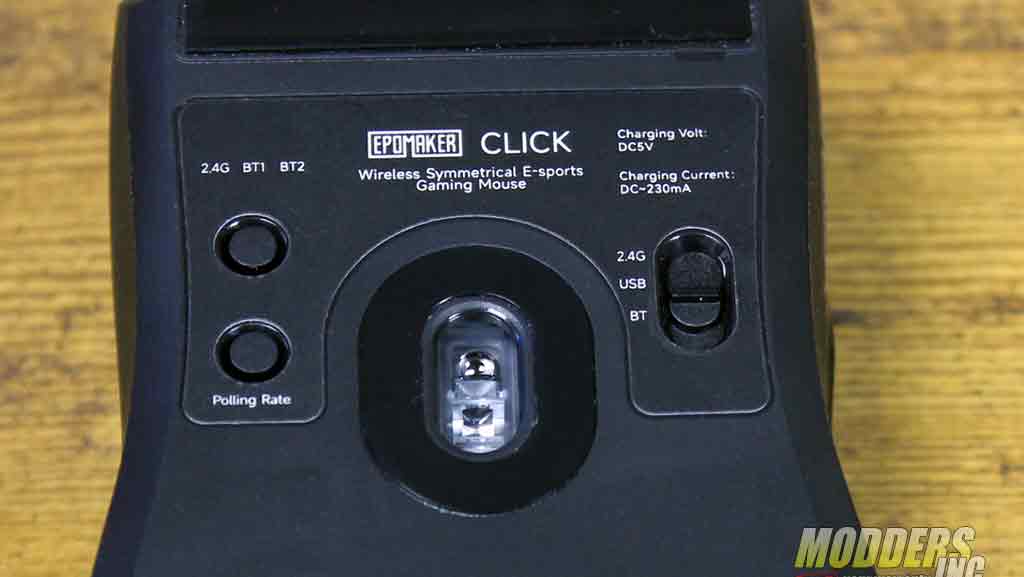
On the underside of the Epomaker CLICK mouse are the action buttons. Starting on the left side of the view, the top button is used to connect the mouse to either 2.4G or Bluetooth. You get visual feedback from a super tiny LED if the process worked or not. The button below it is the one that can change the sensor polling rate. Moving over to the right side, there is a mode selector switch with 2.4G first, USB second, and Bluetooth 3rd.
Now let’s talk performance, because this is where things get a little ridiculous — but in a good way.
The CLICK uses the PAW3950, which is one of the newest flagship sensors out there. It goes up to 42,000 DPI, which… look, nobody needs that. If you’re gaming at 42K DPI, you’re probably a lab experiment, and when you sneeze, your cursor ends up in another time zone. But the real star here is the 8,000 Hz polling rate. That means the mouse is reporting its position to your PC 8,000 times per second. In practice, it makes micro adjustments feel smoother, and flicks feel more consistent — especially in games like Valorant, Apex, CS2, Battlefield, Call of Duty, and all of those FPS games. Oh, and yes, it actually holds up in wireless mode, which is impressive.
Battery life is good. The Epomaker CLICK uses a 500mAh battery for long periods between charges. At 1K polling, it lasts a good while. At 8K polling, it drains faster — but honestly, that’s expected. You don’t buy an 8K mouse for battery life. You buy it because you want your inputs to hit the PC faster than your brain can process them. For everyday usage, you are going to be just fine, just turn down the polling, and you won’t have to recharge it for a long time
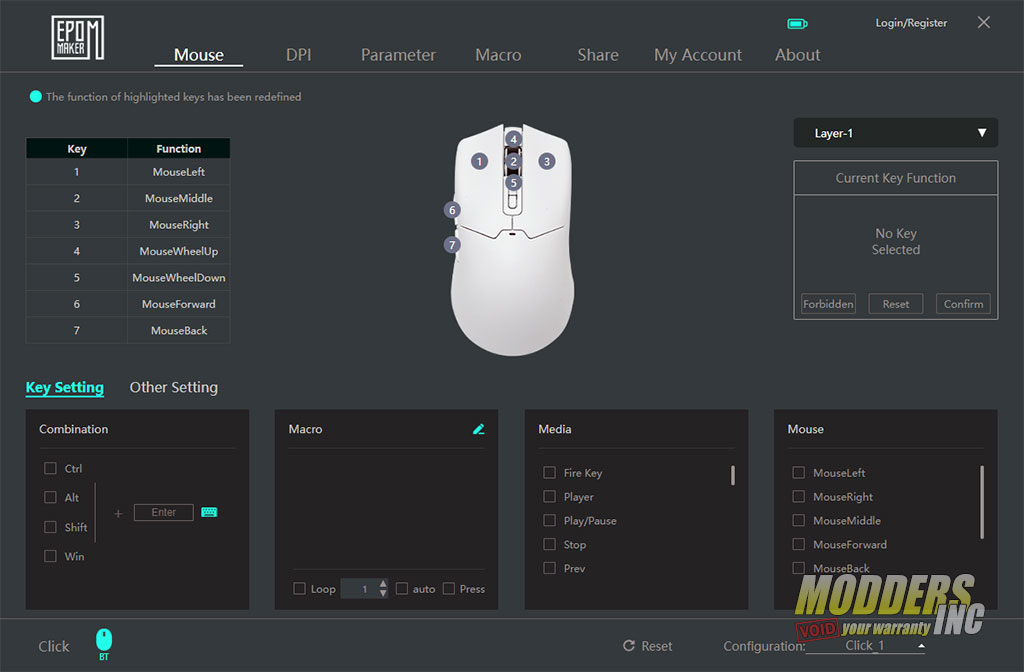 The software is simple, which I actually appreciate. You can adjust DPI steps, polling rate, RGB, macros — all the basics. It’s not bloated, it doesn’t try to install five background processes, and it doesn’t ask you to create an account just to change your DPI.
In actual gameplay, the Click feels great. The lightweight design makes long sessions easy as I played for several hours and I felt no hand or wrist tiredness. The sensor performance is rock solid. Tracking feels smooth, flicks feel sharp, and I didn’t get any weird spin-outs or jitter. If you’re a claw or fingertip grip player, this mouse is going to feel like an extension of your hand.